Category: Education
Video: Looping through strings with Python
Common Canvas mistakes that teachers should avoid
Canvas LMS Dark Mode extension for Google Chrome
A student recently shared this Google Chrome extension that makes the Canvas Learning Management System appear in “dark mode”.
Dark mode for Canvas. Staying up late doing homework? Reduce your eye strain and keep your circadian rhythm with this Dark mode for canvas! Canvas dark mode should work for your school, if it does not, contact me and I can update the plugin to include your school's URL! Currently, dark mode for canvas works on any "instructure.com/*" domain.


Demo: Microsoft Teams in the Classroom at Microsoft Inspire 2019
Amazon Alexa Meets IBM Domino
I had the honor of becoming a contributor for the outstanding NotesIn9 Video Podcast produced by David Leedy. In this show, I demonstrate how I built and Amazon Alexa Skill for the IBM Domino based IdeaJam app. If you have any questions, please let me know. I would be more than happy to answer them! Thank you, David, for having me on. More videos on building Alexa Skills coming soon.
College Instructor Pro Tip No. 6
When an assignment has been available for 2 weeks and you ask for an extension on the day it is due isn’t cool.
College Instructor Pro Tip No. 5
Read through the assignment in its entirety. Read through it again and maybe a third time. If you only use the grading rubric to go by, you will possibly miss key elements of the assignment.
My New Motto
While talking to my long time friend Dan Sickles about app dev and education, Dan said this:
Start them in the cloud as that’s where they will be living
Amen. I’m about to order the t-shirt.
Canvas LMS: How to Validate Links in a Course
I’m not sure if this feature is new or not, but it certainly makes validating all of the links in a Canvas course easy to check.
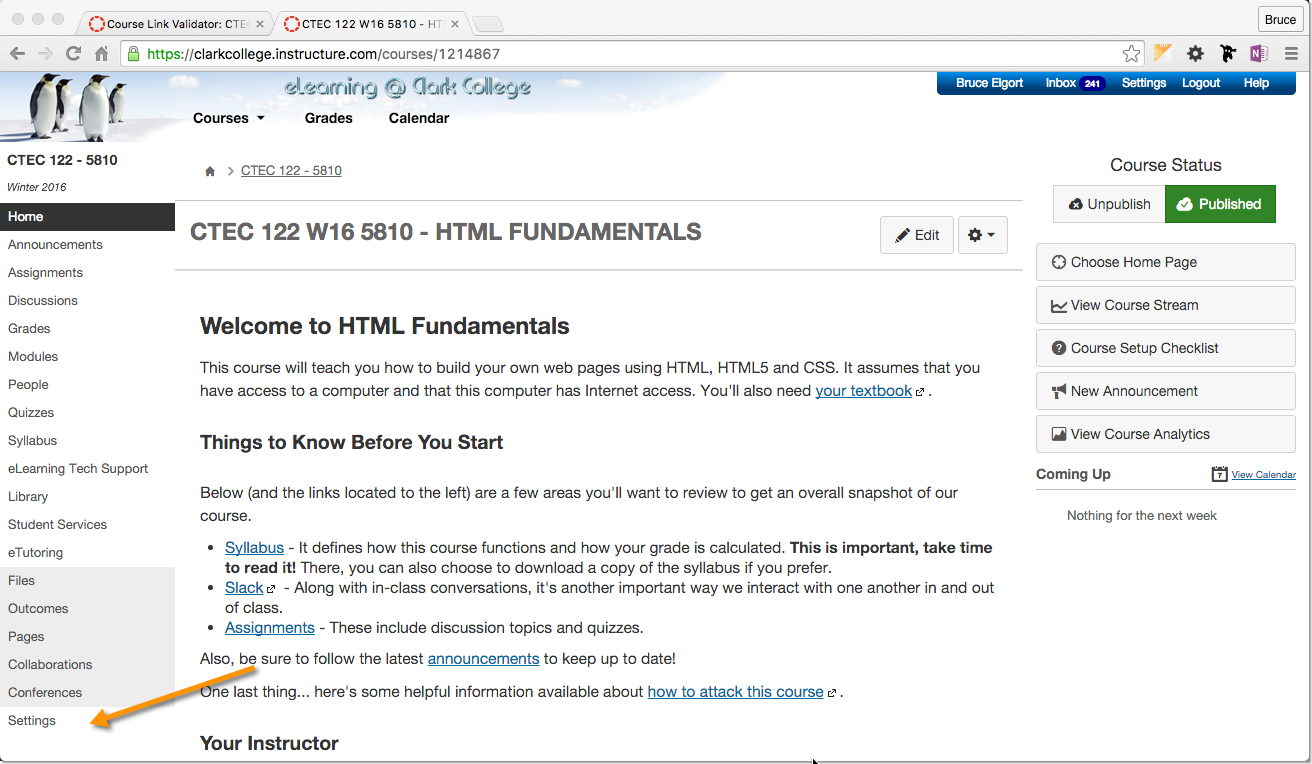
Start by logging into Canvas and going into the course you want to validate. In the left navigator, click on the “Settings” link:
On the Settings page, look in the right navigator for the “Validate Links in Content” link and click on it.

From the Course Link Validator page you can click on the button to start validating all of the links in all of your content in your course. It may take a few minutes for it to complete, so be patient.
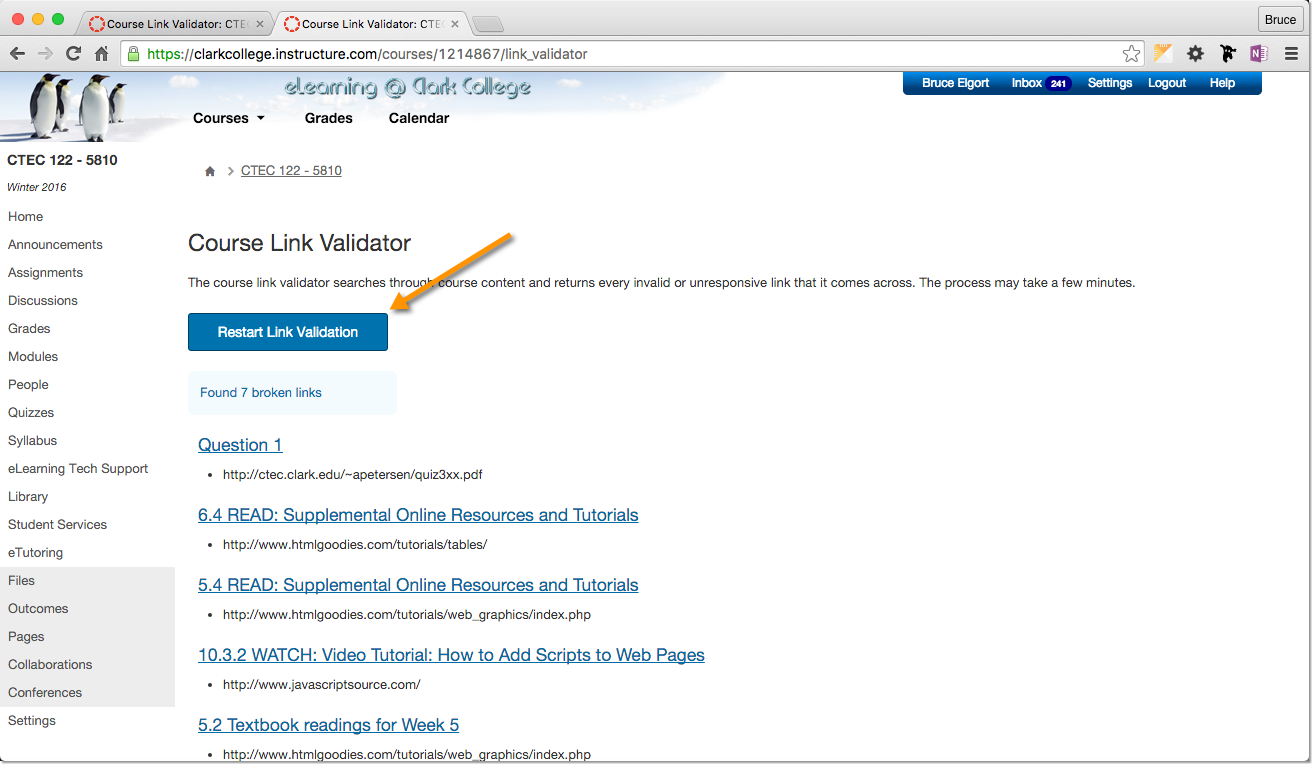
Once completed, you will see a list of all of the content with the associated links that are broken. You can then restart the link validation after you fix and links that the validator finds are broken.
I hope this helps you in developing quality Canvas course shells.

